Pocketpedia for your iPhone and iPad
Pocketpedia is the companion app for the Desktop Pedia programs on your iPhone and iPad. Sync your data so you have access to your collections at all times and do searches in Doghouse for entries you haven't added yet. The sync works both ways so whatever changes you make in Pocketpedia will be reflected in Gamepedia after you've synched the two programs.
Purchase Pocketpedia on the iTunes App Store to download onto your iPad, iPhone or iPod touch. Pocketpedia requires iOS 7 or higher installed on your mobile device and version 5.1 or higher of the Desktop Pedia programs.
To sync your data, run Gamepedia on your Mac and Pocketpedia on your mobile device. Tap the "Sync" button at the top of the Pocketpedia window and authorize the sync in the window that appears in Gamepedia. (This will only happen the first time you sync.)
Depending on the size of your database and the cover image quality, the first sync can take a few minutes. Future syncs will be much faster since only entries and images that have been changed will be synched.
The programs need a Wi-Fi connection to 'see' each other so make sure all your devices are connected to the same Wi-Fi network.
If that fails, try creating a direct network on your Mac through the Airport menu (at the very top of your screen, the little quarter pie that shows the strength of your signal). Select "Create Network", name the network whatever you like and then go into the Settings app on your mobile device and connect to that same network. Then try the sync again.
If the sync still doesn't work after that, go into Gamepedia, hold down the Option key and from the Help menu choose 'Export for Pocketpedia'. This creates a file with all the covers and info that you can then sync via iTunes. (It's quite large as it contains all the covers regardless if Pocketpedia already has them.) Connect your mobile device to iTunes and select Pocketpedia at the bottom of the 'Apps' tab in iTunes. Drag the exported file into the Pocketpedia Documents section in iTunes to import into Pocketpedia. When it has finished copying the file, run Pocketpedia to have it import the file and all the covers.
If you're missing cover images after a sync or a restore from iTunes, you can force the program to re-sync all cover images by holding down the Option key on your keyboard and tapping the 'Sync' button.
Should you be using Pocketpedia as a standalone app and thus cannot do a clean sync from the Mac, you can re-download all the cover images from Doghouse by bringing up any large cover image in Pocketpedia (tap the image) and then hold two fingers on the large cover for 2 seconds to bring up an option to redownload all cover images from the Doghouse.
To search inside a collection, go to the top of the list and tap on the search field to bring up the keyboard. By default the search is limited to a few fields (title, publisher, genre and borrowed by) but in Settings > Pocketpedia you have the option to extend the search to all fields.
If you don't own Gamepedia or simply want to add an entry to your collection while you're on the go, tap the action/input button in the menu bar of any of the collections and select "Add" from the menu that appears. That'll bring up the
Doghouse search. (If you'd like to add an entry manually, choose that option instead.)
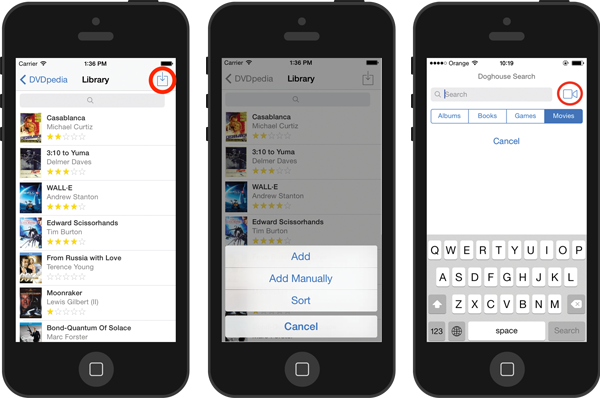
Enter keywords or UPCs for searches. Once you've found the entry you want to add, select it and tap the plus button to make it part of your database.
You can also scan barcodes to do a search on Doghouse and add entries directly in Pocketpedia or to send the search to Gamepedia for more search site options. Just tap the little camera icon next to the search field for Doghouse and start scanning your barcodes. The little computer icon at the bottom of the scanner window lets you know where the search is happening: blue = in Pocketpedia directly, green = send it to Gamepedia. For more information about using Pocketpedia to do searches in Gamepedia, check out this part of the Help
Adding games using Pocketpedia.
To create a new collection, tap the plus button in the menu bar of the collections view. Give the new collection a name and you're set.
The details view for an entry shows you all the fields and information. Tap the cover image for a full screen version.
The "Edit" button at the top of the screen lets you edit the information as well as move the entry to a different collection or delete it (at the very bottom of the screen). On the iPad, the "Edit" button is represented by another action button at the top of the details view menu bar.
Can't decide which game to play? Just shake your iPhone a little and Pocketpedia will randomly select an entry from your collection.
There are two settings which you can change in the Settings app of your mobile device for Pocketpedia: choose the cover size to sync (larger covers means the app will use more space and take longer to load) and choose which fields the search should access (searching all fields means a slower response time).
